Google has a new operating system called Fuchsia in development, with the early results publicly available on Github (and you can even compile and run it yourself, should you feel daring). The new OS differs from both Android and Chrome OS since it doesn’t run on a Linux kernel, and instead uses as its core code something called Magenta, which might make it better suited to running on embedded systems like fixed-purpose Internet of Things connected devices.
The new project is actually going to be available on Raspberry Pi 3, according to project member Travis Geislebrecht, a Google team member who previously worked on Palm, Apple, Danger (makers of the Sidekick) OS projects, as well as embedded system OS development for Jawbone. Given its pedigree, and the fact that clues in the OS code suggest it can run on everything from dash infotainment systems for cars, to embedded devices like traffic lights and digital watches, all the way up to smartphones, tablets and PCs.
Suggestions for what Fuchsia will actually be used for vary, but theories run anywhere from an OS to replace (and truly unify) both Chrome OS and Android, to something that can run with better efficiency on small, low-power devices like Android Wear smartwatches.
It’s intriguing to imagine Google building One OS to Rule Them All, especially considering that it has likely learned a lot from the Android and Chrome OS experience about what a next-gen OS might look like. A restart would also let it course correct on some of the issues that have plagued Android, including updates that go out at the discretion of carrier and OEM partners, which result in the bulk of users being a couple of generations behind.
It’s also always possible this is a skunkworks project that will quietly disappear, but it would make sense for someone like Google to build an OS designed for our modern connected world, in which almost everything is a computer, and almost everything has the potential to work together.
According to Google's François Beaufort, the Chromium team is working on a "VR shell" to let users browser the web using Google Cardboard or Daydream-ready VR headsets with a smartphone slotted in.
Chrome for VR is currently an experimental feature and can be activated by going to "chrome://flags/#enable-vr-shell" in the URL bar.
As reported by Road to VR, the Chrome in VR isn't fully functional yet even with it enabled. It's slowly rolling out to Chrome developer channels, so be patient if you don't see it yet.
As Google gears up for its big VR push with Daydream-ready smartphones, headsets and controllers, the company is no doubt preparing software and content to launch with it.
At its I/O developer conference this year, Google announced a VR version of the Google Play store for users to download and discover new VR content. YouTube, MLB.com and HBO Now were some VR apps unveiled.
The Daydream Home VR interface.
IMAGE: GOOGLE
Developing Chrome for VR is practically a must. While it may not be an out-of-body experience that literally puts you in the Internet, users will, in theory, be able to launch and view 360 video and VR content directly from within the VR browser.
Last year Road to VRtook a look at Samsung's Gear VR internet browser. A VR Chrome browser could provide a similar experience.
At Google I/O last month, Google announced plans to bring Android apps to select Chromebooks via the Google Play Store.
Most consumers won't be able to get Android apps in Chrome OS until this fall, but anyone running the Developer channel version of Chrome OS can test it out starting Friday. Google's François Beaufort announced the Google Play Store and Android apps are rolling out to the Asus Chromebook Flip.
It's still early, but I'm stoked, so I dug out our Chromebook Flip and installed the Developer channel to try some Android apps on it.
Getting set up
Installing the Developer channel is easy, and anyone can do it. (It's not the stable version, so be aware that you may run into some bugs and performance issues.)
First, you'll have to reset your Chromebook Flip by following these steps. (IMPORTANT: You will lose all your files when you do this, so be sure to back them up to external storage before doing the factory reset).
Log into your Google account, then open Settings by clicking on the time-Wi-Fi-battery panel in the lower-right corner of the screen. Click "About Chrome OS" at the top.
Next, click "More info..." below the "Check for and apply updates." Then "Change channel." Here's where you'll change the channel from consumer "stable" to "Developer - unstable."
Once you've switched, you may need to restart and log back in.
IMAGE: SCREENSHOT: RAYMOND WONG/MASHABLE
Next, go back into Settings and scroll down to a new section called "Android Apps." Check "Enable Android Apps to run on your Chromebook." This activates the Google Play Store icon that appears on the dock; the icon won't launch if you don't check off this setting.
After you've followed these steps, you can click the Google Play Store icon and start installing Android apps.
The Play Store
The Google Play Store running on Chromebooks looks exactly the same as on an Android tablet, meaning it's not a smartphone version simply blown up; the app is optimized for the screen size. (In this case, the Chromebook Flip basically functions like a 10.1-inch Android tablet.)
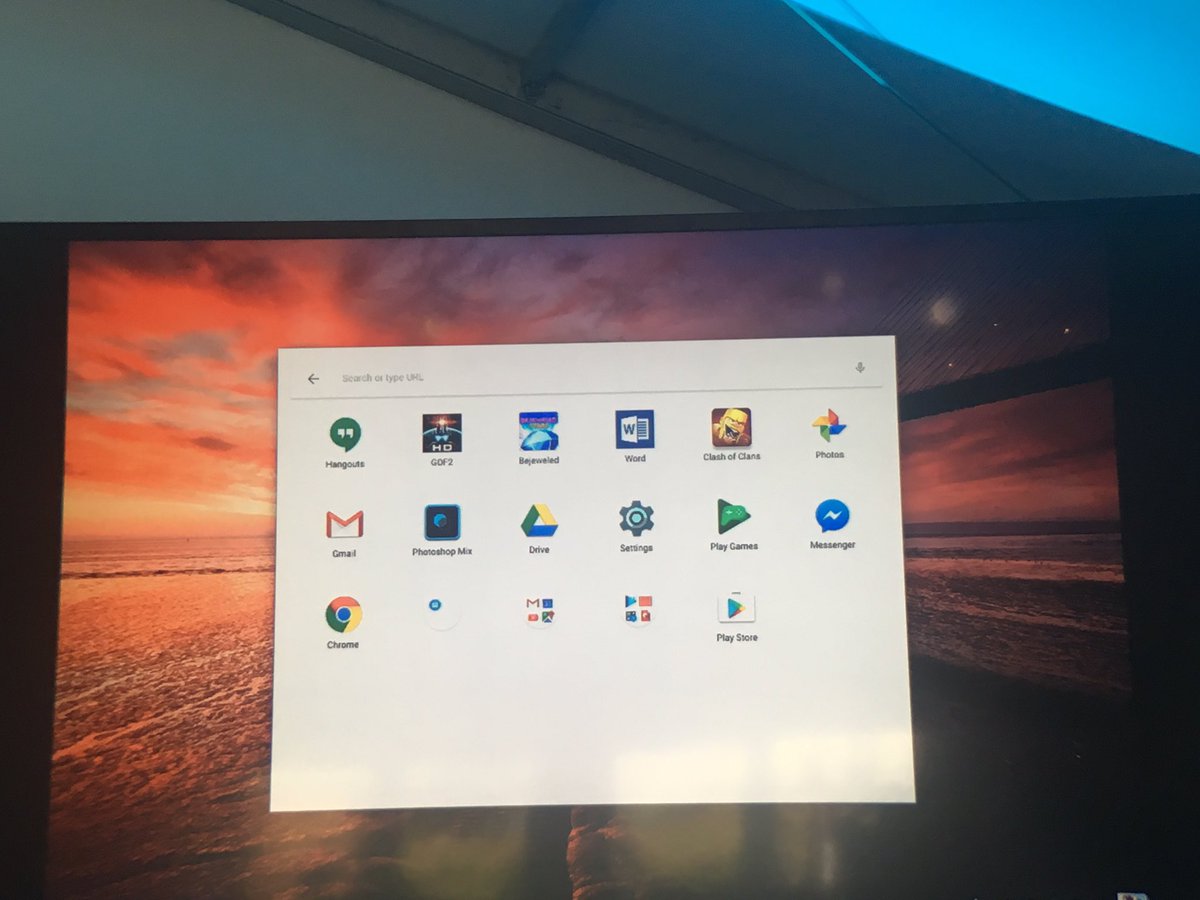
Downloaded Android apps are mixed in with the Chrome apps once they're installed.
IMAGE: SCREENSHOT: RAYMOND WONG/MASHABLE
Downloading Android apps onto a Chromebook.
IMAGE: SCREENSHOT: RAYMOND WONG/MASHABLE
Sweet, but buggy
I installed and tested a handful of Android apps. Generally, most of them ran just like they do an Android tablet. Non-graphic intensive apps worked the best, and 3D games likeAsphalt 8: Airborne and N.O.V.A. 3 were the worst, since the Flip isn't exactly powerful hardware.
The Chromebook Flip is a convertible Chromebook: It's a laptop, but its touchscreen and hinge allow the screen to fold over backwards to serve as a tablet. Android apps work best in tablet mode (at least for now) since most of them haven't been optimized for use with keyboard and mouse controls yet.
A casual game like Pac-Man 256 was fun to play using the touchscreen, and guiding Pac-Man through the maze also worked surprisingly well using the arrow keys.
Another app that played well on the Chromebook was Clash of Clans, simply because its gameplay is perfect for use with a trackpad.
Not all Android apps ran on the Chromebook Flip, though. For example, many apps that are reliant on the camera won't work. I couldn't even install Instagram.
Instagram's terms and conditions restrict users to uploading photos only from supported mobile devices, not from computers. Some third-party services get around these restrictions, but using them can get your Instagram account banned. This restriction could change in the future, but right now the app won't run on Chromebooks.
Another app that wouldn't install was VSCO. And Snapchat doesn't really work at this point, either. I could install it, use features like messaging (text), and browse Discover, but an error message popped up whenever I tried to access the camera.
Snapchat (sort of) running on a Chromebook
The camera doesn't work.
IMAGE: SCREENSHOT: RAYMOND WONG/MASHABLE
Discover does work though.
IMAGE: SCREENSHOT: RAYMOND WONG/MASHABLE
Google's Snapseed photo editor, however, did install. Powerful editing apps like Snapseed will give the Chromebook much-needed productivity tools. It's no Photoshop, but Snapseed gets the job done for a quick crop, color adjustment or other tweak.
Chrome OS comes with a couple of Google apps already pre-installed. But some, like Google Maps, are just shortcuts to their web versions. Here's a look at Google Maps on the web, compared to the Android app running on a Chromebook:
Google Maps web
Google Maps app
I wouldn't recommend that most users install the Developer channel and run Android apps on their primary Chromebook — it's just not ready yet. But bugs and compatibility issues aside, I look forward to Android invading the Chromebook. It's going to make it an even more attractive computer.
So if you're considering a Chromebook in the near future, this might be a big deal. Just make sure the Chromebook you buy will support Android apps. You can find a list of compatible Chromebooks here.
MOUNTAIN VIEW, Calif. — Google's Play Store, home to more than 1 million Android apps, is finally moving beyond the confines of Android.
Chrome OS, the operating system that powers Chromebooks, is getting support for the Play Store, Google announced Thursday during a session at its I/O developer conference.
Though Google previewed the news Thursday, Android apps won't officially launch until later in 2016. But developers can begin to optimize their apps for Chrome OS ahead of the launch.
Once the Google Play Store is available to Chromebooks, users will be able to download Android apps to their desktop — even if they don't have a web or desktop version. During a demo Thursday, Senior Director of Product Management Kan Liu showed off Clash of Clans,Adobe's and Photoshop Mix running on a Chromebook.
Any app that's available in Google Play on Android will also be available in Google Play on Chrome, though there may be some device-specific restrictions (phone dialer apps, for example, may not be available since they require a cellular connection.)
Still, developers will be able to optimize their apps for Chrome OS — by creating better experiences for mouse and keyboard input, for example — beginning in June, if they have an Asus Chromebook Flip, Chromebook Pixel (2015) or Acer Chromebook R11. You can see a full list of supported device here.
While some had speculated that Google would also bring Android apps to its Chrome browser, Google said this change was limited Chrome OS, at least for now.
More than two years in the making, the move marks the biggest step yet toward Google's goal of creating a more unified experience between Chrome and Android.
Google first began to bring Android apps to Chrome OS in 2014 as part of a project called App Runtime for Chrome, but relatively few developers took advantage of the capability. And since then, rumors have persisted that Google planned to merge Android and Chrome. Meanwhile, Chromebooks themselves are more popular than ever. Research firm IDC reported that Chromebooks outsold Macs for the first time during the first quarter of 2016 — a stat Google touted during its announcement Thursday.
Now Google has finally offered a look into its vision for the future of Chrome OS.
Update: This story has been updated to clarify that Android apps are only coming to Google Play on Chrome OS. An earlier version said the apps would be available on the Chrome browser, as well.
Google Chrome notifications aren’t always the easiest thing to master. Some websites like Facebook will ask if you want to turn on notifications in Chrome, but it’s an easy window to miss or ignore if you aren’t sure what it is.
But there are other times when you turn on notifications for a site like Facebook only to regret the decision either because they're too much or you're already getting notifications in another way (via your computer's OS, your phone, your smartwatch, etc.). Here's how to take control of your Chrome notifications whether you're using a PC, Mac or mobile:
Find your notification settings
The first thing you need to know is how to get to your notification settings in the browser, which are a bit hidden. Click on the "hamburger" menu in the top right of your Chrome window and click Settings.
Find your Chrome settings in the browser's drop down menu.
Scroll down the settings screen and click the link at the very bottom that says Show advanced settings… and then click the Content settings… button directly under the Privacy heading. Scroll down to the Notifications section to see your basic notification settings, which look like this:
Turning notifications off or on
If you don’t want to see any notifications while browsing Chrome, the easiest thing to do is select the option Do not allow any site to show notifications. But if you want to be more selective, you can turn individual website notifications off when you click on the Manage exceptions…button.
The "Manage exceptions..." button brings up a menu with every website that has asked your permission to send notifications.
This section will show you which websites have asked for your permission to show notifications and whether or not you allowed it. With the exception of Google sites and apps like Mail, Docs and Drive, you can turn any website notifications on and off from here.
In the bottom box, you can also block notifications from entire domains or specific IP addresses. To block entire domains, put [*.] before the web address and select block. For example, to block all Google domains from sending notifications, type [*.]google.com into the area to cover all Google sites.
With this knowledge at your fingertips, you now have complete control over your Chrome notifications. Go forth and browse.
 '
'




 Popular
 Tags
Tags Videos