Attention night owls: Twitter is making it easier for you to use its app in the dark.
The company just updated its Android app and added a dark-themed mode for nighttime viewing. The feature should make late-night tweeting a little easier on your eyes.
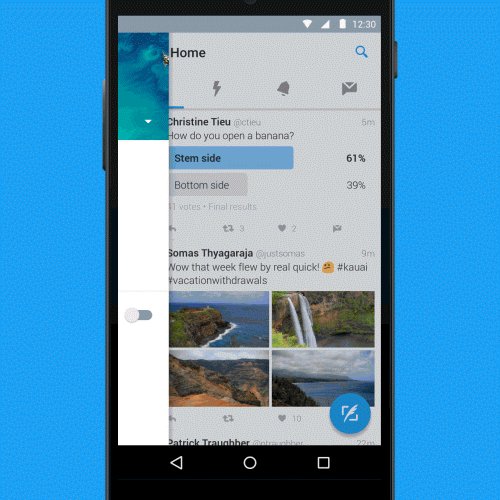
You can find the feature in the app's main menu (under your profile icon or the hamburger icon) where you can easily switch it on or off. Once on, Night Mode switches the app to a darker color palette that's similar to to what Tweetbot and a few other third-party Twitter clients have had for some time.
There's no official word yet on a similar feature for iOS, but we wouldn't be surprised if it was in the works.
In the meantime, iOS users can make do with Night Shift, Apple's feature for changing the color temperature of your display at night. Rolled out with iOS 9.3, the feature will kick in automatically once it starts to get dark to make looking at your devices at night a little less painful.
There may even be a similar feature in the works for Android Nougat, as an early version of the Android N preview contained a hidden Night Mode feature.
At Google I/O last month, Google announced plans to bring Android apps to select Chromebooks via the Google Play Store.
Most consumers won't be able to get Android apps in Chrome OS until this fall, but anyone running the Developer channel version of Chrome OS can test it out starting Friday. Google's François Beaufort announced the Google Play Store and Android apps are rolling out to the Asus Chromebook Flip.
It's still early, but I'm stoked, so I dug out our Chromebook Flip and installed the Developer channel to try some Android apps on it.
Getting set up
Installing the Developer channel is easy, and anyone can do it. (It's not the stable version, so be aware that you may run into some bugs and performance issues.)
First, you'll have to reset your Chromebook Flip by following these steps. (IMPORTANT: You will lose all your files when you do this, so be sure to back them up to external storage before doing the factory reset).
Log into your Google account, then open Settings by clicking on the time-Wi-Fi-battery panel in the lower-right corner of the screen. Click "About Chrome OS" at the top.
Next, click "More info..." below the "Check for and apply updates." Then "Change channel." Here's where you'll change the channel from consumer "stable" to "Developer - unstable."
Once you've switched, you may need to restart and log back in.
IMAGE: SCREENSHOT: RAYMOND WONG/MASHABLE
Next, go back into Settings and scroll down to a new section called "Android Apps." Check "Enable Android Apps to run on your Chromebook." This activates the Google Play Store icon that appears on the dock; the icon won't launch if you don't check off this setting.
After you've followed these steps, you can click the Google Play Store icon and start installing Android apps.
The Play Store
The Google Play Store running on Chromebooks looks exactly the same as on an Android tablet, meaning it's not a smartphone version simply blown up; the app is optimized for the screen size. (In this case, the Chromebook Flip basically functions like a 10.1-inch Android tablet.)
Downloaded Android apps are mixed in with the Chrome apps once they're installed.
IMAGE: SCREENSHOT: RAYMOND WONG/MASHABLE
Downloading Android apps onto a Chromebook.
IMAGE: SCREENSHOT: RAYMOND WONG/MASHABLE
Sweet, but buggy
I installed and tested a handful of Android apps. Generally, most of them ran just like they do an Android tablet. Non-graphic intensive apps worked the best, and 3D games likeAsphalt 8: Airborne and N.O.V.A. 3 were the worst, since the Flip isn't exactly powerful hardware.
The Chromebook Flip is a convertible Chromebook: It's a laptop, but its touchscreen and hinge allow the screen to fold over backwards to serve as a tablet. Android apps work best in tablet mode (at least for now) since most of them haven't been optimized for use with keyboard and mouse controls yet.
A casual game like Pac-Man 256 was fun to play using the touchscreen, and guiding Pac-Man through the maze also worked surprisingly well using the arrow keys.
Another app that played well on the Chromebook was Clash of Clans, simply because its gameplay is perfect for use with a trackpad.
Not all Android apps ran on the Chromebook Flip, though. For example, many apps that are reliant on the camera won't work. I couldn't even install Instagram.
Instagram's terms and conditions restrict users to uploading photos only from supported mobile devices, not from computers. Some third-party services get around these restrictions, but using them can get your Instagram account banned. This restriction could change in the future, but right now the app won't run on Chromebooks.
Another app that wouldn't install was VSCO. And Snapchat doesn't really work at this point, either. I could install it, use features like messaging (text), and browse Discover, but an error message popped up whenever I tried to access the camera.
Snapchat (sort of) running on a Chromebook
The camera doesn't work.
IMAGE: SCREENSHOT: RAYMOND WONG/MASHABLE
Discover does work though.
IMAGE: SCREENSHOT: RAYMOND WONG/MASHABLE
Google's Snapseed photo editor, however, did install. Powerful editing apps like Snapseed will give the Chromebook much-needed productivity tools. It's no Photoshop, but Snapseed gets the job done for a quick crop, color adjustment or other tweak.
Chrome OS comes with a couple of Google apps already pre-installed. But some, like Google Maps, are just shortcuts to their web versions. Here's a look at Google Maps on the web, compared to the Android app running on a Chromebook:
Google Maps web
Google Maps app
I wouldn't recommend that most users install the Developer channel and run Android apps on their primary Chromebook — it's just not ready yet. But bugs and compatibility issues aside, I look forward to Android invading the Chromebook. It's going to make it an even more attractive computer.
So if you're considering a Chromebook in the near future, this might be a big deal. Just make sure the Chromebook you buy will support Android apps. You can find a list of compatible Chromebooks here.
Tired of switching back and forth between Facebook Messenger and SMS on your Android?
On Tuesday, Facebook announced that the Messenger app now supports SMS messaging. That means Android users can set the app as their default texting client.
For those who want to opt in, the update is now available on Messenger's Android app. (It doesn't appear Facebook has any plans to bring it to its iOS app.)
Once you enable the feature via the "default SMS app" option in Messenger's settings, you'll be able to view your text messages in Messenger alongside your Facebook chats. It will also support some — but not all — of Facebook's "rich content," including stickers, emoji, audio, photos and location information. Other Messenger features, like bots, GIFs, payments and third-party apps, will continue to be limited to Facebook messages.
Facebook will distinguish between Facebook messages and SMS with different colors: Facebook's will be blue while SMS will be purple. You'll also see the Messenger icon underneath the photo of friends who use Messenger.
Facebook first added SMS support to Messenger's Android app back in 2012, but later pulled the feature. Now, with an increasing emphasis on Messenger, the social network is likely hoping to ramp up engagement with the app even more. But it may not be an easy sell to everyone.
Messenger has proved controversial since the company began requiring its users to download it separately from the main Facebook app, despite making many improvements to Messenger. Last week, it began targeting the remaining Messenger holdouts by removing messaging from the Facebook mobile web app, a move that angered many users.
In a Facebook post Tuesday, the company emphasized that using the app as a new default SMS client was optional and that user privacy will be protected.
"SMS in Messenger doesn't send, upload or store your conversations on Facebook servers. Using this feature is your choice; you can easily switch to a different app as your primary SMS app from your device settings, or directly from the app that you want to make your primary SMS app."
Google's Chromebooks could soon be able to run almost any Android app.
At present the feature hasn't been confirmed but eagle-eyedReddit users have spotted an option that would allow the apps to run on Google's Chrome OS.
The option to 'Enable Android apps to run on your Chromebook' was first spotted by Reddit user 'TheWiseYoda' who saw the message appear when opening the Chromebook's settings. The option has since been removed.
Although the setting couldn't be turned-on, a check of the source code revealed the following message from Google: "Over a million apps and games now available on your Chromebook".
The feature's existence, which appears to be in a late stage of testing, comes ahead of Google's yearly developer conference. Google I/O 2016 is due to take place over May 18-20 in Mountain View, California.
During last year's I/O keynote the company announced Android M, Google Photos, updated Google Now and detailed its plans for virtual reality. Other announcements at the event included Project Brillo, its operating system for the internet of things, and updates to Android Wear.
This year's I/O keynote may include the expansion of Androidapps to the Chromebook. The move would not be entirely unpredicted as it would build on its beta App Runtime for Chrome (ARC).
The accompanying message in the Chromebook's settings also included the heading of "ARC OPT IN". At present ARC lets users run some Android apps on the Chrome OS.
When Google launched ARC in 2014 it introduced Vine,Evernote, Duolingo and other apps.
"We'll be working with a select group of Android developers to add more of your favourite apps so you'll have a more seamless experience across your Android phone and Chromebook,"Google said at the time.

support.twitter.com/articles/20055…


 Popular
 Tags
Tags Videos